We are always looking for ways to help you easily connect with other Community Loaves members. One of these systems is our internal message and E-card system that you can use to send a message to one or more members of your hub, your hub leader group, or indeed anyone in the Community Loaves system. And, importantly, your hub members can message each other! The hub leader email tool is limited to just hub leaders and delegates, but the messages and e-cards tool is for everyone!
Accessing Messages and E-Cards
There are three ways to access the messages and e-cards system:
Via Messages on the Dashboard
Click "Messages" in the blue bar at the top of your Dashboard. If you have a new message, a notification will show up next to "Messages" (just like you can see "4 New!" next to Volunteer Tasks, below).
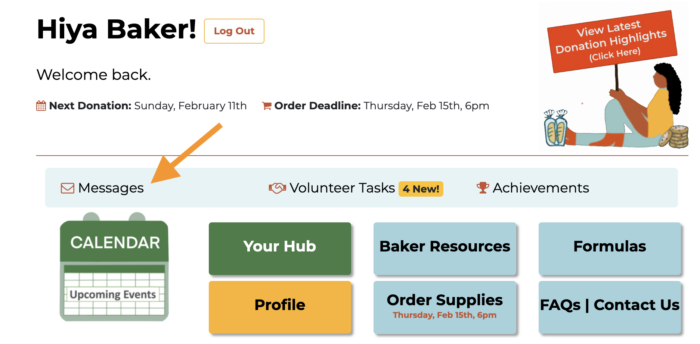
Using the Messages button on your dashboard will all you to access your full history with the tool - all the messages you've sent and received, as well as any groups (e.g. your hub members, your Hub Leader group, etc.) that are pinned to the top of the list for easy access.
Via the Doughnation Highlights Tool
From your Doughnation Highlights tool, you can quickly send a note or an animated card to a baker to celebrate achievements they earned on that donation.
Click on the Donation Highlights Tool:
On the Donation Highlights page you can view organization totals, baker anniversaries and badges earned, and hub specific numbers for any donation date you choose from the drop down menu. You can toggle between Organization Totals and View My Hub Only to change what you're seeing on the page.
Tabs allow you to view the names of bakers who are celebrating anniversaries, or have earned specific badges during the donation date chosen. Click on the green "Say Congratulations" button next to a baker's name.
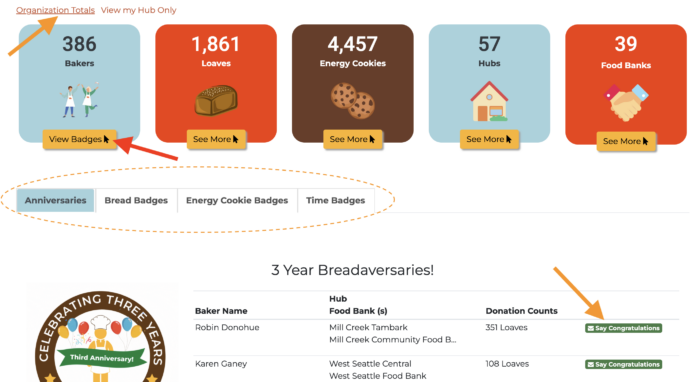
This will bring up a message field specifically for that person, where you can type a message to them and select a card to send if you wish. You should be able to see your past message history with that person as well.
Via your Hub Page
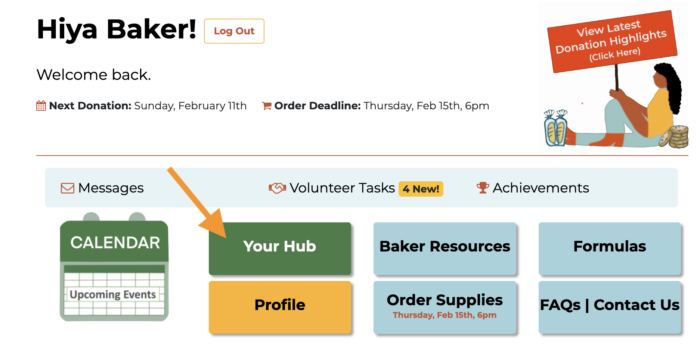
Access a list of all your hub members from the Your Hub button located on your main Dashboard.
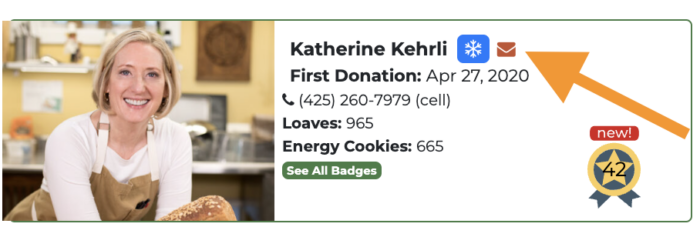
Then scroll down to the grid of friendly faces, and click on the little red envelope icon. This will take you to the messaging tool and you can choose a card to send, or just send a quick note.
Using the Messages and E-Cards System
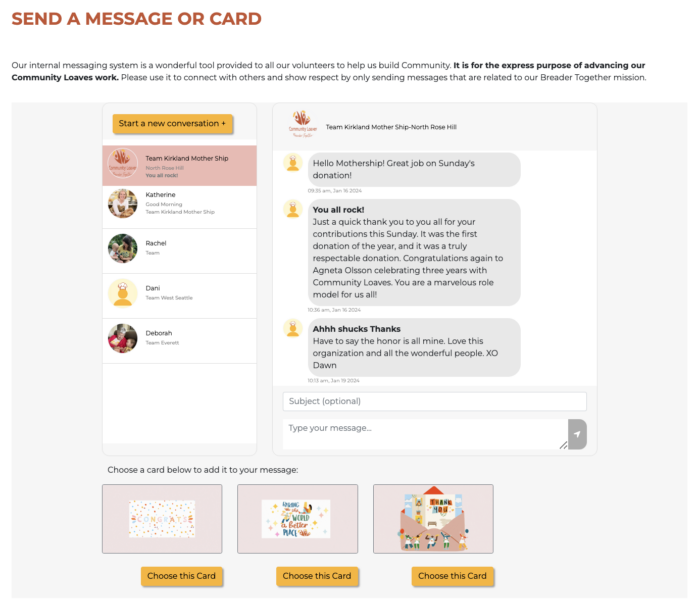
This is what the messages and e-cards tool looks like when you access it through the Messages button on your dashboard. Here you'll be able to see the full history of your messages with individuals and groups, and you'll be able to create new messages to anyone in the organization.
Messaging Different Audiences
It's possible to send messages to a range of different audiences, both within and outside of your hub.
All Hub Members
To send a message to all members in your hub, use the Team <hub name> list that is pinned to the top of your screen. [why would a hub leader want to do this instead of using the email tool to reach all hub members?]
All Hub Leaders
To send a message to all the hub leaders in the Community Loaves organization, select the All Hub Leaders list that is pinned to the top of your page. This is a great way to share best practices among hub leaders, ask questions of your fellow hub leaders about usage of tools or logistical challenges, and cheer each other on!
Hub Leader Group
To send a message to all hub leaders in your hub leader group, select the Hub Group: <name> list. These are all of the hub leaders who are part of your quarterly meet up. Sending a message to this list is a great way to follow up after the meeting, ask for more details about something someone shared, or propose topics you'd like to discuss in the next meeting.
Individual Volunteers
To send a message to an individual Community Loaves volunteer, click on the yellow "Start a new Conversation" button. Doing so will automatically show you your fellow hub members, as these are the people you will most likely be contacting. However, it's possible to message anyone in the organization by typing their name into the search bar and waiting for a moment for the drop down list to populate. Choose that person from the list and type your message!
Adding an E-card to your message
Adding a colorful and cheery e-card to your message is easy! Simply type your message in the message field, then click on the yellow "choose this card" button to attach the card to your message.
Message Notifications
Community Loaves members are notified they have a message in the system in two ways:
They are sent an email notification that they have a message (to avoid overwhelm, it is a digest email sent once per day, so they won't have be overwhelmed with message notifications). From that email notification they can either login to Community Loaves to use the messaging system to reply, or they can respond directly to that email and it will go to the sender's email.
They will also get a new message notification on their dashboard, so every time they log in they can easily see if they have a new message.