
Sometimes, plans change, or we have sticky fingers when creating a task.
If you need to make a change to a Volunteer Task you created or delete it altogether, or maybe even add a volunteer once the task has already happened, here are the steps to help you do so.
Edit or Delete a Volunteer Task
Step-by-step for editing or deleting a volunteer task:
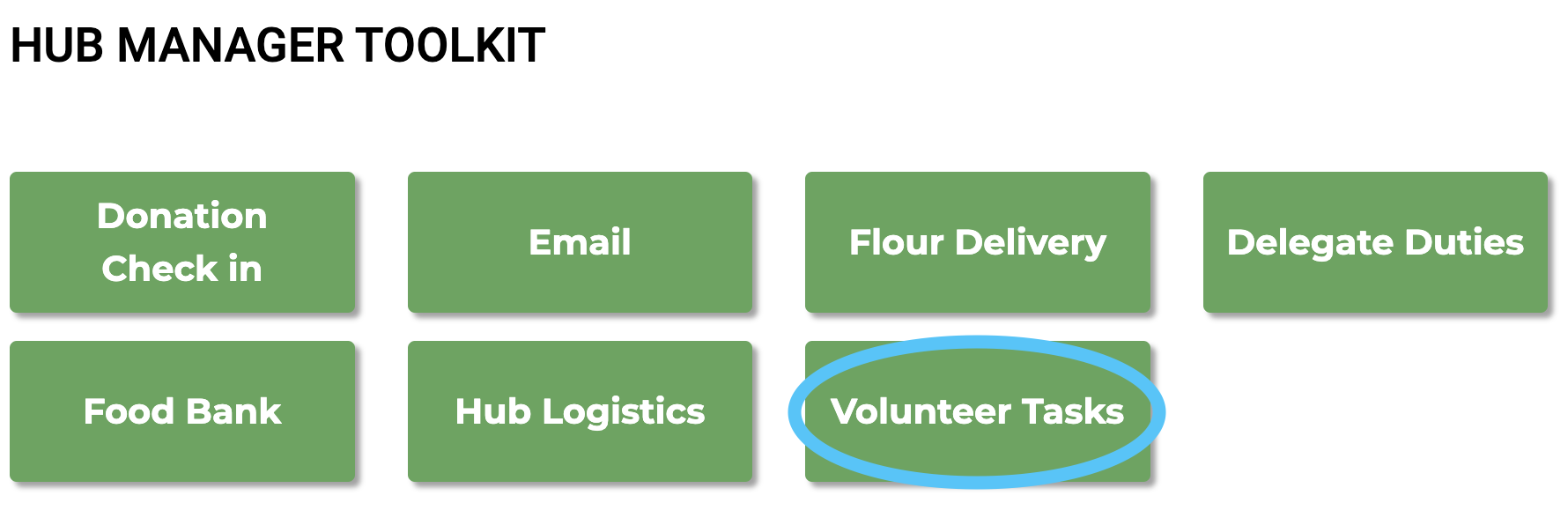
Step 1: On your CL Dashboard, scroll down to your Hub Leader Tool Kit and click on the green "Volunteer Tasks" button.
Step 2: If you don't see the task you want to edit on the list, check the drop-down menu near the top right titled “Click to View Past Tasks” and choose the month it is in (perhaps you accidentally scheduled an event for a date in the past - it happens to the best of us).
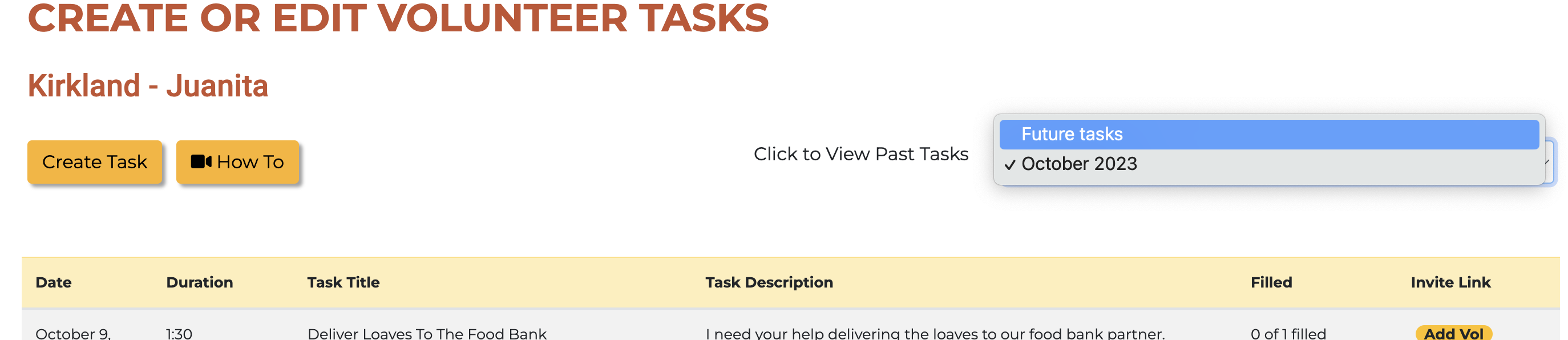
Step 3: Click “Edit” under the task title.
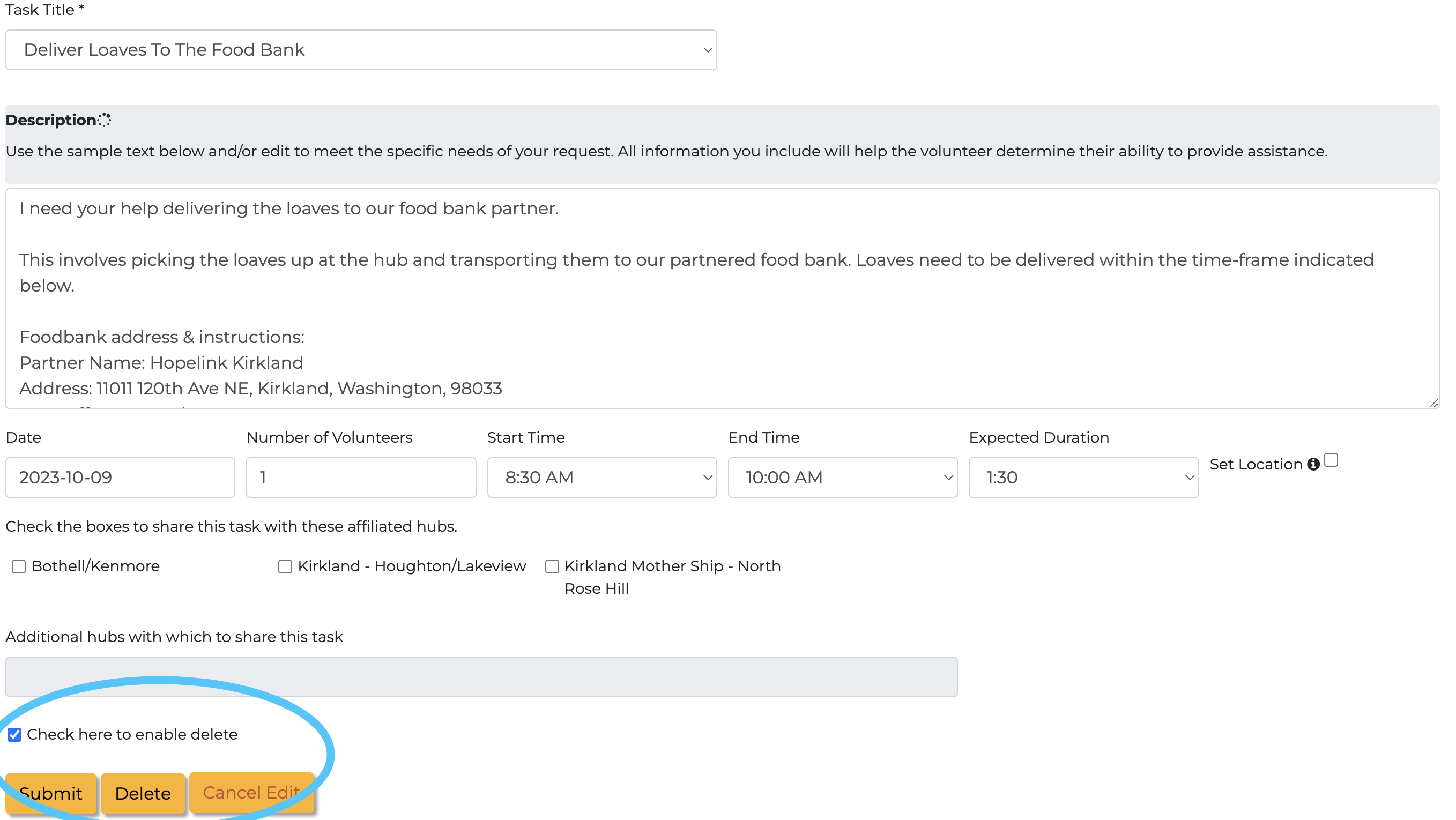
To Edit: Make any edits needed and click "Submit."
To Delete: Scroll down and right above the yellow “Submit” button, you’ll see a check box next to “Check here to enable delete.”
Check it, and then a “Delete” button will appear between the “Submit” and “Cancel Edits” buttons. Click Delete!
How to Backdate Volunteer Tasks
If you need to add a volunteer after the task has passed, please watch the video below.